Changing Default Theme Content
Our themes come pre-translated into more than 12 languages, with carefully crafted default wording for buttons, labels, and interface elements (e.g., “Add to cart,” “Search,” “Sold out”). However, you may want to customize these phrases to better reflect your brand’s voice, tone, or style.
✏️ How to Edit Default Theme Content
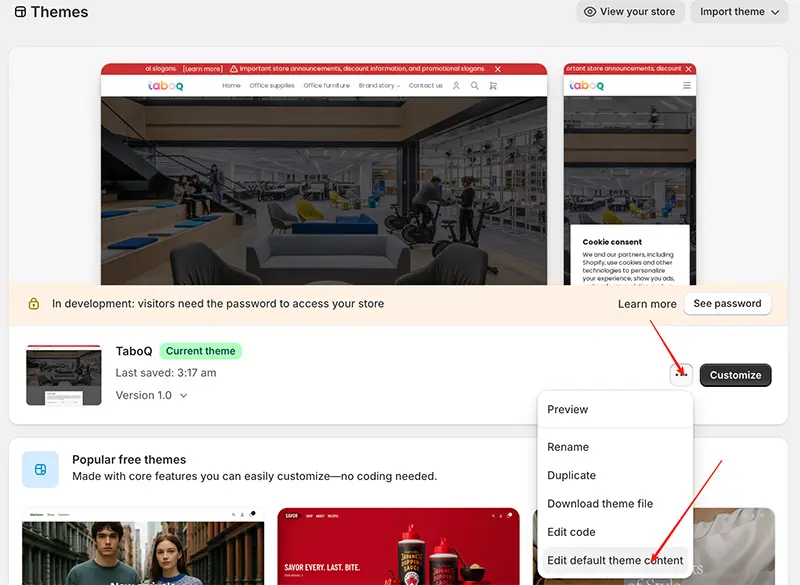
- In your Shopify admin, go to Online Store > Themes.
- Find the theme you want to edit and click the three-dot “More actions” button.
- Select “Edit default theme content” from the dropdown menu.
-
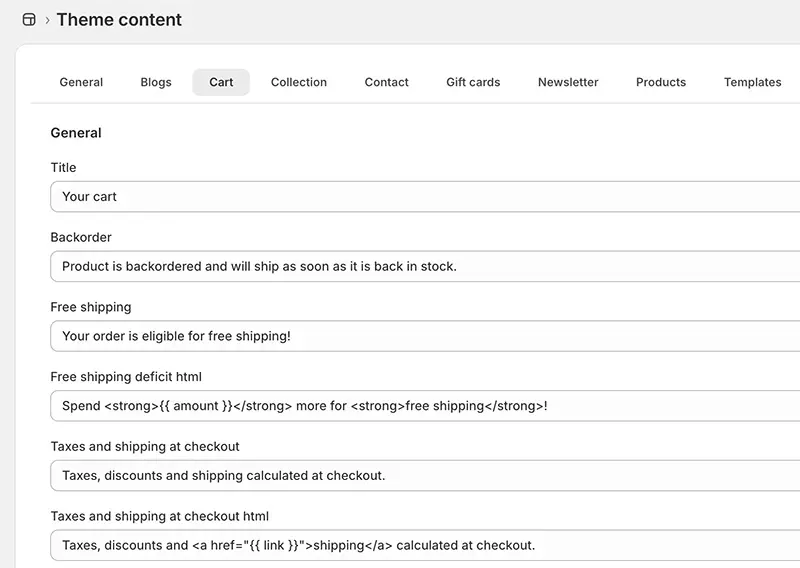
You’ll see a list of all pre-defined text strings used in the theme, organized by language.
-
To quickly find a specific phrase, type the first few letters into the “Filter” box at the top.
-
Click on any field and replace the default text with your custom wording.
Example:
- Default:
Add to cart - Custom:
Add to bagorI want this!
- Default:
-
Changes are saved automatically—no need to click “Save.”
🌐 Multilingual stores: If your store supports multiple languages, repeat this process for each language version to ensure consistency.
⚠️ Best Practices
- Keep it clear and concise: Custom wording should still be instantly understandable to customers.
- Avoid over-branding: Phrases like “Add to mystical treasure chest” may confuse users—prioritize usability.
- Test on mobile: Ensure your custom text fits well on all screen sizes.
- Don’t remove essential context: For example, changing “Unavailable” to just “—” may mislead shoppers.
❓ Why Not Edit the Code Directly?
While you could edit text directly in the theme’s .json or .liquid files, using “Edit default theme content” is:
- Safer (no risk of breaking code)
- Easier to maintain (changes persist through theme updates)
- Fully reversible
🔧 If you need dynamic or conditional text (e.g., personalized messages), that requires code customization. In such cases, consider hiring a Shopify Expert.
💡 Pro Tip: Use this feature to align microcopy with seasonal campaigns, product launches, or brand refreshes—without touching a single line of code!