Wholesale and Quantity Discounts
The Scenario theme supports wholesale pricing by allowing you to set different prices based on quantity ranges—all without requiring apps or custom code.
When configured correctly, the storefront will automatically display a clean pricing table and hide the technical variant from customers, providing a seamless wholesale experience.
🛠️ How to Set Up Quantity-Based Wholesale Pricing
Step 1: Create a Special Variant Named qty
-
Go to Products in your Shopify admin.
-
Edit an existing product or create a new one.
-
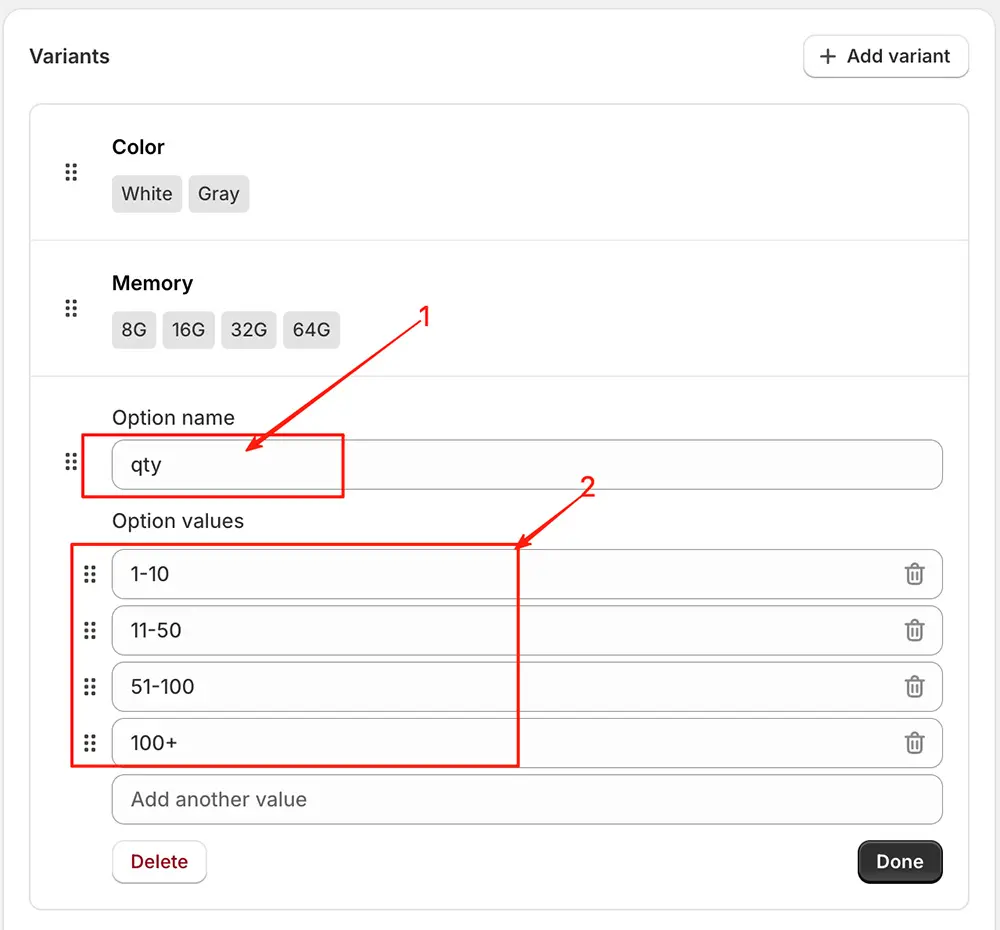
Under Variants, click Add option.
-
Set the Option name to exactly:
qty⚠️ Important: The name must be exactly
qty(lowercase, no spaces). The theme uses this specific name to trigger the wholesale display. -
For Option values, enter your quantity ranges as text, for example:
1–1011–5051–100100+
-
For each variant, set the price that corresponds to that quantity tier (e.g., $50 for 1–10 units, $40 for 11–50 units, etc.).
-
Click Save.
Step 2: View on Storefront
Once saved, the Scenario theme will automatically:
- Hide the
qtydropdown from the product page - Display a clean pricing table showing quantity ranges and corresponding prices
Example storefront appearance:
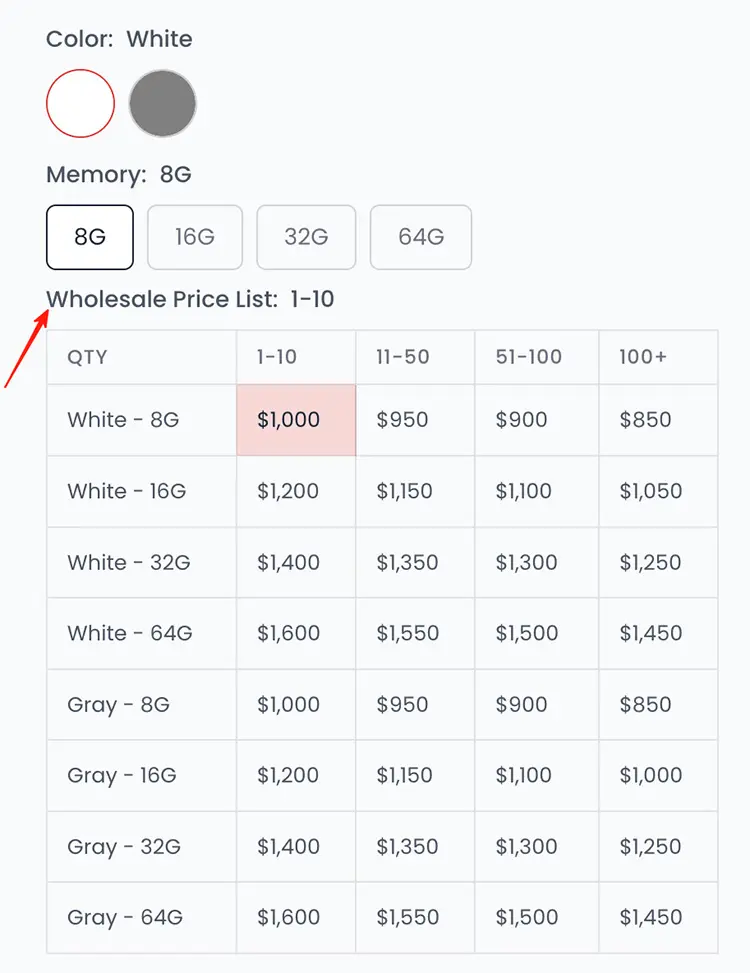
✅ Customers simply select their desired quantity using the standard quantity input—no need to choose a variant. The correct price is applied automatically based on the quantity entered at checkout.
⚠️ Important Notes
- This feature only works if the variant option is named exactly
qty. - The quantity ranges are for display only—Shopify does not enforce minimum/maximum purchase rules based on these labels. For true tiered pricing with enforced rules (e.g., “must buy 11+ to get $40”), consider a dedicated wholesale app or Shopify Markets + B2B (on Shopify Plus).
- Inventory tracking works per variant, so ensure your stock levels are managed accordingly.
❓ FAQ
Can I use this for true B2B wholesale?
This setup is ideal for simple volume discounts. For full B2B functionality (customer approval, net terms, dedicated catalogs), we recommend:
- Shopify B2B (available on Shopify Plus), or
- A vetted app from the Shopify App Store
Will this work with cart or checkout discounts?
Yes, but note: automatic discounts (e.g., “10% off 3+ items”) may stack with or override your tiered pricing. Test thoroughly.
Can I customize the pricing table design?
The table styling is built into the theme. To modify its appearance (colors, layout, etc.), you’ll need to edit the theme CSS or hire a Shopify Expert.
💡 Pro Tip: Use clear, consistent range labels (e.g.,
1–9,10–49,50+) to avoid customer confusion. Avoid overlapping or ambiguous ranges like “10–50” and “50–100” (does 50 qualify for both?).