Understanding App Embeds and App Blocks
App blocks and app embeds are powerful features of Online Store 2.0 themes that allow third-party apps to add functionality to your store—without editing theme code. These tools make app integration safer, easier, and more maintainable.
✅ Why Use App Blocks?
App blocks offer significant advantages over traditional code-based app integrations:
🛠️ Easy to Use
Add app-powered sections directly in the Theme Editor—just like any native section. No coding required.
🔒 Better Safety
Since app blocks don’t modify your theme files, they reduce the risk of:
- Breaking your theme layout
- Causing JavaScript or CSS conflicts
- Introducing hard-to-debug errors
🧹 Cleaner Uninstalls
When you uninstall an app, Shopify automatically removes its app blocks from your pages. This prevents “dead code” from lingering and slowing down your store over time.
✅ Recommendation: Only use apps that support app blocks or app embeds. If you’re unsure, contact the app developer before installing.
➕ Adding an App Block
-
Install a compatible app from the Shopify App Store.
-
Open the Theme Editor (Online Store > Themes > Customize).
-
Navigate to the page or template where you want to add the feature.
-
Click “Add section”.
-
In the section picker, go to the “Apps” category.
-
Select the app block you want to insert.
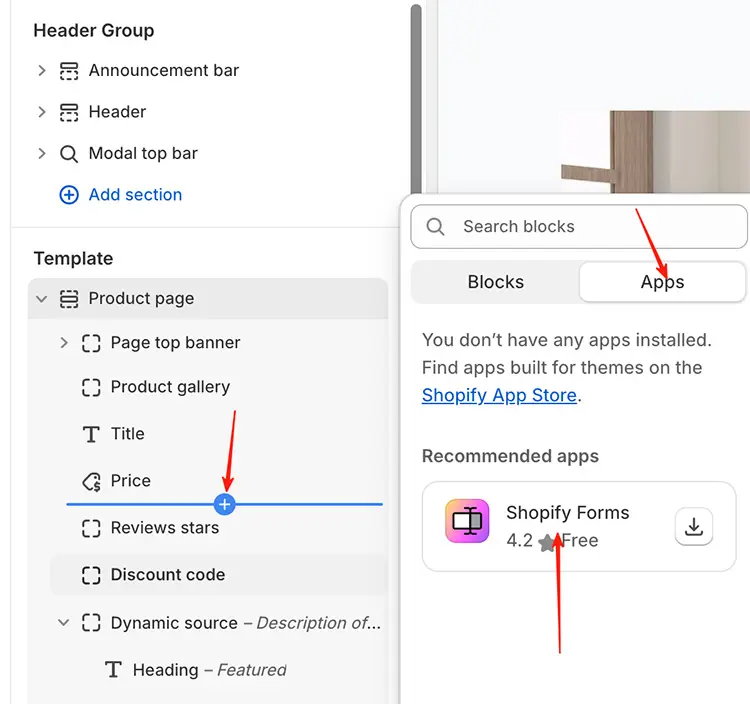
⚠️ Don’t see the app block?
- Ensure the app is fully installed and activated.
- Some apps require additional setup (e.g., connecting an account or enabling a feature).
- Contact the app developer for specific instructions—each app works differently.
📘 Learn more in Shopify’s official app blocks documentation.
📦 Enabling App Embeds
App embeds allow apps to inject global functionality that appears across your entire store (e.g., a live chat widget, loyalty badge, or cookie banner).
- Unlike app blocks (which are page-specific), embeds load on every page.
- They’re often used for persistent UI elements like floating buttons or pop-ups.
⚠️ Important: Embed behavior varies by app. Some may require you to:
- Toggle an “Enable on store” setting
- Add a snippet via theme settings
- Whitelist your domain
👉 Always refer to the app’s documentation or contact their support team for setup guidance.
⚠️ Use Apps Responsibly
While apps can solve real business problems, they are also the #1 cause of slow store performance.
Why?
- Each app adds extra scripts, API calls, and third-party resources.
- Poorly optimized apps can block rendering, delay page loads, or trigger layout shifts.
Our Recommendation:
“As few apps as possible.”
Ask yourself:
- Is this app essential?
- Can I achieve the same result with native theme features or metafields?
- Does the app follow Shopify’s performance best practices?
📉 Studies show that stores with 5+ apps often experience 20–50% slower load times.
🛑 Support Policy for Apps
We do not provide support for third-party apps.
- Apps are developed, maintained, and supported entirely by their creators.
- If you encounter issues (e.g., broken layout, missing features, errors), contact the app developer directly.
You can usually find support links in:
- The app’s Shopify App Store listing
- The app’s dashboard inside your Shopify admin
- The developer’s website or documentation
💡 Pro Tip: Before installing any app, check:
- Recent reviews (especially 1–3 star ratings)
- Last update date (avoid apps not updated in >6 months)
- Performance impact (look for “lightweight” or “async-loaded” claims)
🌟 Final Advice: Apps are tools—not magic. Use them intentionally, monitor their impact, and remove any that no longer deliver clear value.