Managing Alternate Templates
Templates in Shopify are a fundamental—but often misunderstood—concept. This guide explains what templates are, how to create and manage them, and how to use them effectively to build unique pages without affecting your entire store.
🧩 What Are Templates?
A template defines which sections appear on a specific type of page. Shopify provides default templates for all major page types:
- Home page
- Products
- Collections
- Collections list
- Gift card
- Cart
- Legacy customer accounts
- Pages
- Blogs
- Blog posts
- Search
- Password
- 404 page
By default, all products use the same “Default product” template, all collections use the same “Default collection” template, and so on. This means that if you add a section to the default product template in the Theme Editor, every product page will display it.
While this ensures consistency, it limits flexibility. That’s where alternate templates come in.
✅ Use alternate templates to:
- Create a New product landing page
- Build a brand story page with unique layout
- Design different product pages for hero items vs. standard products
- Customize collection pages for seasonal campaigns or categories
⚠️ Important: You cannot create alternate templates for the homepage. Shopify allows only one homepage per store. For campaign landing pages, create a custom “Page” template instead.
➕ Creating a New Template
-
In your Shopify admin, go to Online Store > Themes, then click Customize on your active (or draft) theme.
-
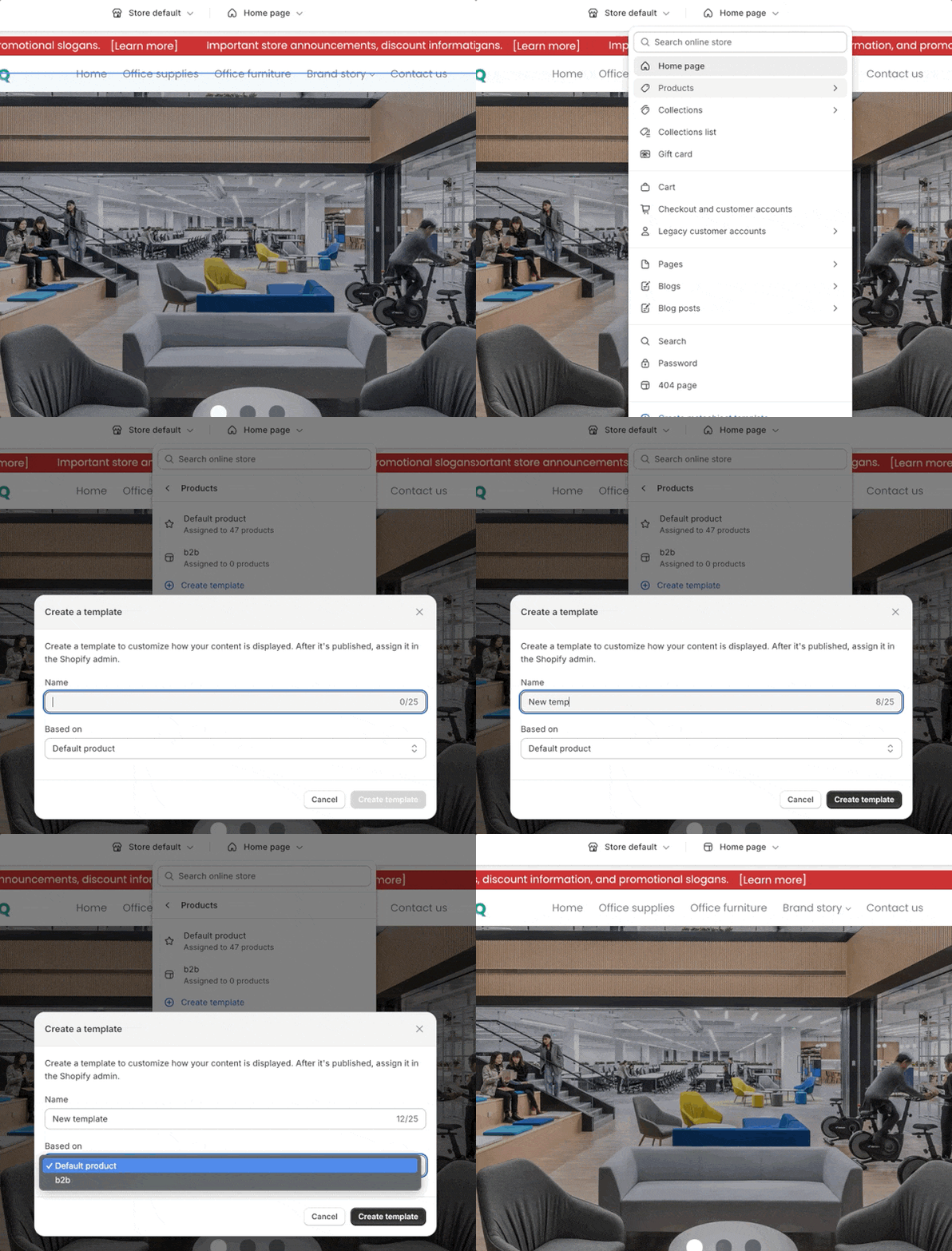
At the top of the Theme Editor, click the page type selector (e.g., “Products”, “Pages”, “Collections”).
-
Click “Create template”.
-
Enter a clear, descriptive name (e.g.,
new-product-landingorpremium-product). -
(Optional) Under “Based on”, choose an existing template to copy sections from—instead of starting from the default.
📌 Shopify automatically converts spaces to hyphens (e.g., “New template” →
new-template). This is called a handle, and it appears in the top-left corner of the editor.
- You’ll be redirected to your new template. Now you can add, remove, or reorder sections—without affecting the default template.
📤 Assigning a Template to a Page, Product, or Collection
Creating a template isn’t enough—it must be assigned to a specific resource to go live.
To assign a template:
-
Go to the relevant resource in your Shopify admin:
- Products → Edit a product
- Collections → Edit a collection
- Pages → Edit a page
-
In the “Online store” card (bottom right), click the current template name (e.g., “Default product”).
-
Select your custom template from the dropdown.
-
Click Save.

⚠️ Troubleshooting: If your new template doesn’t appear in the dropdown:
- Ensure your theme is published. Alternate templates are only visible for the published theme.
- Templates created in a draft theme won’t show up in the admin until the theme is published.
❓ Frequently Asked Questions
How to create an "Upcoming Events" page?
Create a new “Page” template, design it with campaign-specific sections (e.g., countdown timer, hero banner, featured products), then assign it to a new web page (e.g., /pages/upcoming-events).
Can I assign a template if my theme is still a draft?
No. Template assignment in the Shopify admin only works for the published theme. However, you can build and preview your template in a draft theme—just publish it first before assigning.
Is there a limit on how many templates I can create?
Shopify allows up to 1,000 templates, but we recommend keeping it minimal (e.g., 5–10) for easier maintenance and consistency.
Does creating templates affect store performance?
No. Templates are just layout configurations—they do not impact loading speed or SEO.
🗑️ Deleting or Renaming a Template
Shopify does not allow template deletion or renaming via the Theme Editor.
- To delete a template, you must edit the theme code (via Actions > Edit code) and remove the corresponding
.jsonfile under:templates/(e.g.,product.new-template.json)templates/customers/(for account pages)
⚠️ Warning: Code edits are permanent and irreversible without a backup. If you’re not comfortable with Liquid or JSON, contact Shopify Support or hire a Shopify Expert.
- To rename a template, you must delete it and recreate it with the new name—then reassign it to all relevant pages.
💡 Pro Tips
- Name templates clearly: Use descriptive names like
product.gift-guideorpage.about-us. - Reuse wisely: Base new templates on existing ones to save time.
- Audit regularly: Remove unused templates to reduce clutter.
🌟 Remember: Alternate templates give you creative freedom—without breaking your store’s core structure. Use them to tell unique stories, run campaigns, and elevate key products.