Editing Your Theme
To customize your theme, you’ll use the Shopify Theme Editor—a visual, no-code interface that lets you manage your store’s content by adding, reordering, or removing sections and blocks.
For comprehensive guidance, refer to Shopify’s official Theme Editor documentation.
If you’re new to Shopify, start with the “Getting Started” section to learn the basics of using the Theme Editor.
How to Open the Theme Editor
-
Go to your Shopify Admin dashboard.
-
In the left sidebar, click Online Store → Themes.

- Find the theme you want to edit and click the Customize button.
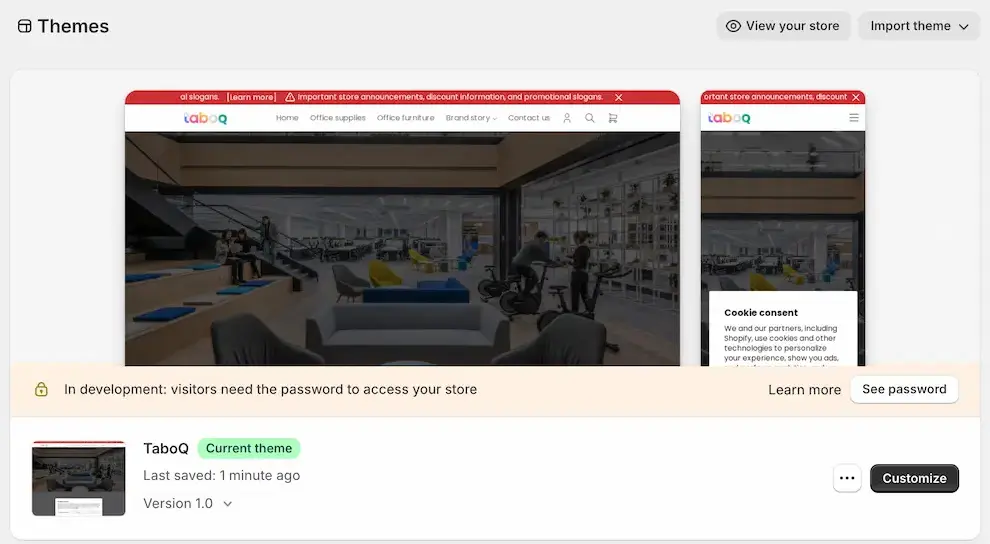
💡 Tip:
- The published theme (displayed larger in the list) is the live version that visitors see when they visit your store.
- Themes in your theme library that are not published are only visible to you. Use an unpublished theme to safely preview changes without affecting your live store.
Once in the Theme Editor, you can:
- Adjust colors, typography, and spacing in the Theme Settings panel.
- Edit content directly on the page (e.g., update text, images, or buttons).
- Add new sections (like testimonials, banners, or featured collections) from the left-hand sidebar.
All changes are saved automatically, but won’t go live until you publish the theme (if you’re editing an unpublished version).